How I expose HTTP services from my homelab
My homelab runs about twenty web services across a few machines. A handful are public so I can share them with family, like Jellyfin. Most are private and only meant for me, like Nextcloud and Immich. I wanted every one of them to have:
- one nice-looking URL that works from anywhere, with HTTPS support,
- no way in from the internet for the private services, even though their names are public (a side effect of having TLS certificates),
- consistent and simple config for each service.
As long as I can live with the trade-offs, I’d rather put this together from small pieces I understand end to end than hand it all to a turnkey platform. The main trade-off is setup: adding a service means editing files and running commands in a console, where a platform would let me click through a web UI. Here’s how those pieces fit.
Public and private names
Say my domain is example.org. Public services live directly under it, and private services live under an internal subdomain:
jellyfin.example.orgis public.nextcloud.internal.example.organdimmich.internal.example.orgare private.
Every one of these names resolves on the public internet, and every one gets a Let’s Encrypt certificate. So the internal names aren’t secret: every certificate Let’s Encrypt issues is published in Certificate Transparency logs, so anyone can list them. What keeps the private services private is an allow list based on where a request comes from, not the hostname being hard to guess.
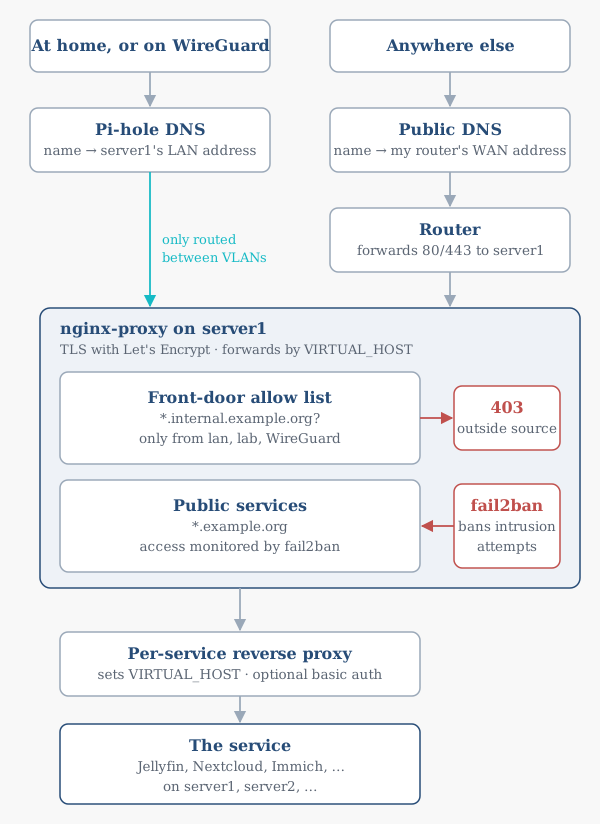
Here’s the whole path a request takes:
Split DNS
What a name resolves to depends on where you ask from. Inside my networks, and over WireGuard, Pi-hole DNS resolves every service name straight to the LAN address of the machine running the proxy (server1). Outside, public DNS exposes the WAN address of my router, and the router forwards ports 80 and 443 to server1.
So every service has one URL that works everywhere with a valid certificate. At home, the router only routes the traffic between VLANs and never has to loop it back to itself. No hairpin NAT!
nginx-proxy in front of everything
All HTTP traffic goes through two layers of proxies on server1:
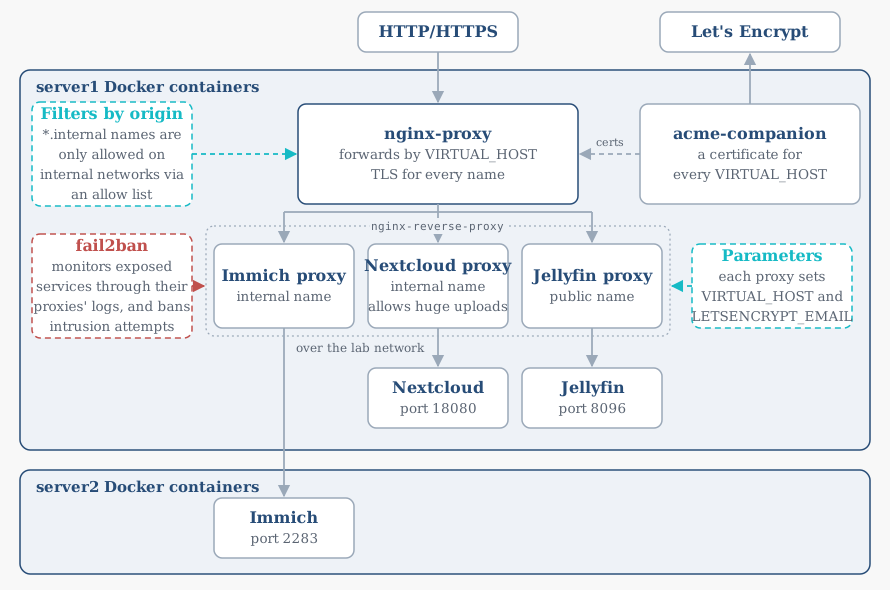
nginx-proxy, withacme-companionnext to it. It watches Docker for containers that declare aVIRTUAL_HOST, writes the virtual hosts by itself and gives each container HTTP access through its virtual host. It only allows*.internal.example.orgnames from internal networks, via an allow list.acme-companiongets and renews a Let’s Encrypt certificate for everyVIRTUAL_HOST.- One tiny proxy container per service, built from my own
nginx-reverse-proxyimage. Each one setsVIRTUAL_HOSTandLETSENCRYPT_EMAIL, songinx-proxyandacme-companionpick it up, and passes the traffic on toserver1.lab:portorserver2.lab:port. It can also switch on basic auth.
Proxying twice is a remnant of how my setup evolved, and it stayed because it gives services on other machines, or ones that just publish a port, a way in that looks the same as everything else. It also gives me an extra on/off switch: stopping a service’s proxy container cuts off access to that service without stopping it.
The front-door allow list
nginx-proxy answers 403 for any *.internal.example.org host unless the request comes from my internal networks: lan, lab or WireGuard. That’s the “Filters by origin” box in the diagram below.
- It covers internal services by default, including any I forget to configure.
- My iot and management networks aren’t on the list.
- Thanks to split DNS and WireGuard, I’m always on an allowed network, so it never gets in my way.
Security on the public side
The most secure setup would have no public side at all. But I value being able to share useful services with family, and that’s worth the trade-off, even if having something open to the internet does give me a bit of anxiety.
Public services see the usual background noise of the internet. docker-logtailer writes every container’s logs to files on the host. fail2ban monitors the exposed services through their reverse proxies’ logs, the second proxy layer, and bans intrusion attempts like scanners and repeated failed logins. That’s the fail2ban box in the diagram below. I wrote about it in a roundup of small tools.
Here’s how all of these pieces fit together on the servers:
All of it in git
Every service and both proxy layers are directories with a docker-compose.yml, all in one git repository:
homelab-services/
├── nginx-proxy/
│   ├── docker-compose.yml       # nginx-proxy + acme-companion
│   ├── conf.d/
│   │   └── addresses.conf       # the allowed networks
│   └── vhost.d/
│       └── default              # the front-door rule
├── nginx-reverse-proxy/
│   └── docker-compose.yml       # one proxy container per service
├── jellyfin/
│   └── docker-compose.yml       # runs on server1
├── nextcloud/
│   └── docker-compose.yml       # runs on server1
├── immich/
│   └── docker-compose.yml       # runs on server2
└── …
Day to day, that means:
- Exposing a service: its own compose file publishes a port, and a new entry in
nginx-reverse-proxy/docker-compose.ymlsets itsVIRTUAL_HOSTandLETSENCRYPT_EMAILand points atserver1.lab:portorserver2.lab:port. - Keeping it private: a
*.internal.example.orghostname puts it behind the front-door allow list.
Conclusions
Looking back at what I wanted from the start:
- One nice-looking URL with HTTPS, from anywhere: split DNS sends me straight to
server1at home, public DNS and a port forward do the same from outside, andacme-companionkeeps a certificate on every name. - No way in to the private services: their names are public, but
nginx-proxyturns away any*.internal.example.orgrequest that doesn’t come from my internal networks. - Consistent and simple per-service config: a compose file and one proxy entry, and the hostname, certificate and access control follow from them.
Managing my HTTP services has no orchestrator, no cluster and no web UI. Exposing a service is a few lines in a text file, and git log is the history of every change I’ve made to what’s exposed and how.